Funky Friday Hit Sounds: How to Customize Your Audio
Customize Funky Friday hit sounds with a sound ID, volume controls, and a start position. Learn what each setting changes and tune your audio for practice.
Jump to
How to Change Your Hit Sound
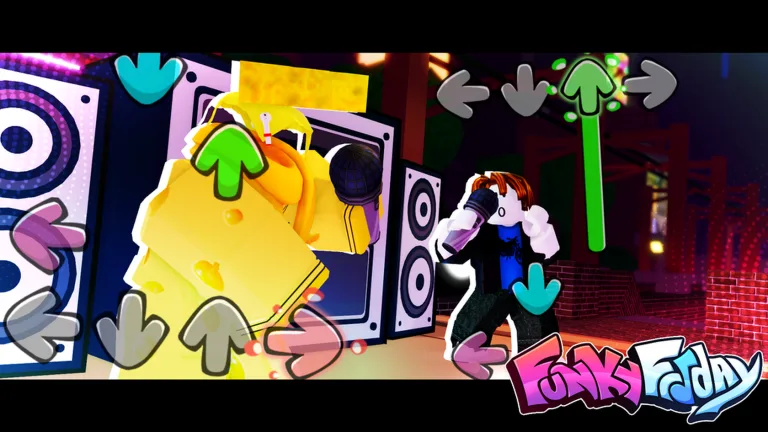
Give each successful note a sound you want to hear throughout a song. Funky Friday hit sounds let you customize that feedback using a sound ID, a volume control, and a playback start position. Adjust them together so your note sound stays clear without drowning out the music.
In the game's settings, look for these controls:
| Setting | What it controls |
|---|---|
| Hit Note Sound | The sound that plays when you hit a note, selected through a sound ID |
| Hit Note Volume | The volume of that sound |
| Hit Sound Time Position | The position within the audio where playback begins |
To customize your setup:
- Enter the sound ID you want to use in Hit Note Sound.
- Adjust Hit Note Volume while listening to how the sound sits alongside the song.
- Change Hit Sound Time Position to choose where the audio starts.
- Play a familiar chart and listen to the result during actual note patterns.
Change one control at a time. Keeping the same chart while you compare adjustments makes it easier to decide whether the sound, volume, or starting point needs more work.
Official page: Funky Friday (roblox.com)
Balance the Sound Against the Music
Start with Hit Note Volume if your chosen audio overwhelms the track. Lower it until you can follow the music comfortably while still hearing the feedback from successful notes.
 Image: Roblox / Lyte Interactive
Test on a chart you already know before moving to a harder song. Listen during closely spaced notes as well as quieter passages: a sound you enjoy on an isolated hit can become distracting when repeated through a busy pattern.
Use these checks while adjusting:
- The music becomes hard to follow: Lower the hit sound volume.
- The audio begins before the part you want to hear: Adjust the playback start position.
- The sound itself pulls your attention away from the arrows: Try a different sound ID.
Choose a short, distinct sound if repeated audio feels cluttered. Keep the volume comfortable rather than raising it to compete with every part of the song.
Use the Start Position for the Audio Itself
Hit Sound Time Position selects where playback begins inside the sound. Use it to reach the part of the audio you want to hear on each successful hit.
Keep that separate from Arrow Offset and Hitbox Offset, which affect arrow generation and hitbox timing. Leave those offsets alone unless you are addressing a timing problem; use the sound controls when you are changing what you hear.
Control Miss Sounds Separately
 Image: Roblox / Lyte Interactive
Missed Note Sound has its own toggle. Turn it off if the extra audio distracts you after a mistake, especially while you are learning a pattern.
Keep Info Bar or Judgement Statistics visible if you want visual feedback while adjusting your audio. That lets you follow your performance without relying on the missed-note effect.
Practice on manageable charts while settling into the new sound. Move to songs slightly outside your comfort zone once you can follow both the music and your note feedback comfortably.
Continue with
 Funky Friday Animation Decal ID: How to Use PicturesUse a Funky Friday animation decal id to customize Riot Shield or Screenshot. Learn which ID field to use and what the Animation Customization pass offers.
More in Customization
See all Customization
Popular pages
Funky Friday Codes (November 2026): Free Rewards Guide
Get Funky Friday codes for free rewards, open the in-game redemption menu, and fix common entry problems. Find the active code and expired entries here.
Funky Friday 2v2: How to Enable Multiplayer Stages
Set up Funky Friday 2v2 with Multi-player Stages, learn how the mode handles win-streaks, and adjust your controls and visuals for easier note reading.
Funky Friday Hardest Songs: Charts That Push Your Limits
Explore Funky Friday hardest songs, from Everlasting Eternity to Detected, and tune your settings to tackle stamina drains, dense charts, and visual chaos.
Funky Friday Best Animations: Style and Clear Notes
Compare Cappy and Demon Tricky in Funky Friday, and pick an animation that keeps notes visible. Keep practice visually simple so you can focus on accuracy.
Join the community
Official channels for news, updates and player help: