
Funky Friday 2v2: How to Enable Multiplayer Stages
Set up Funky Friday 2v2 with Multi-player Stages, learn how the mode handles win-streaks, and adjust your controls and visuals for easier note reading.
Jump to

How to Enable 2v2 in Funky Friday
Funky Friday 2v2 puts a teammate beside you for a rhythm battle between two pairs. The key setting is Multi-player Stages, which allows more than two players on a stage. Both starting players need it enabled, so coordinate before trying to get everyone into the match.
- Play Funky Friday on Roblox and gather your group.
- Join a stage. Multi-player Stages becomes available after you join.
- Enable Multi-player Stages and have the other starting player enable it too.
- Gather four players for a two-against-two battle.
The setting also supports other arrangements, including 4v1. For a team match, organize two players on each side.
Keep this server limit in mind when gathering friends:
- Maximum players per server: 20.
Do Team Matches Affect Your Win-Streak?
Multiplayer stage matches do not change your win-streak. Winning or losing in this mode leaves it untouched, making team battles a useful place to practice with friends without putting a streak on the line.
 Image: Roblox / Lyte Interactive
Deathmatch Game Mode is a separate setting. It can only be changed outside a match, requires both players to enable it, and makes a loss result in an in-game death. Leave it off while learning charts or getting comfortable with team battles.
Set Up Comfortable Controls
Keybinds and arrow skins are under Settings. Start there if your current layout makes repeated notes or quick direction changes awkward.
 Image: Roblox / Lyte Interactive
On PC, try a layout that lets your fingers rest comfortably in a line. DFJK, SDKL, and ASKL are options, listed in left, down, up, right order. Pick one and practice consistently before switching again.
On mobile, enable Mobile Tile Buttons. Console controls support the D-PAD or XYBA.
Adjust scroll speed, arrow size, and lane offset until you can read approaching patterns comfortably. Test one change at a time on a familiar song so you can tell whether it helps. Leave Arrow Offset and Hitbox Offset alone unless you are addressing a timing problem.
Reduce Visual Distractions During Matches
Make your note lanes easy to follow before choosing a demanding chart. Several settings let you remove movement and background clutter:
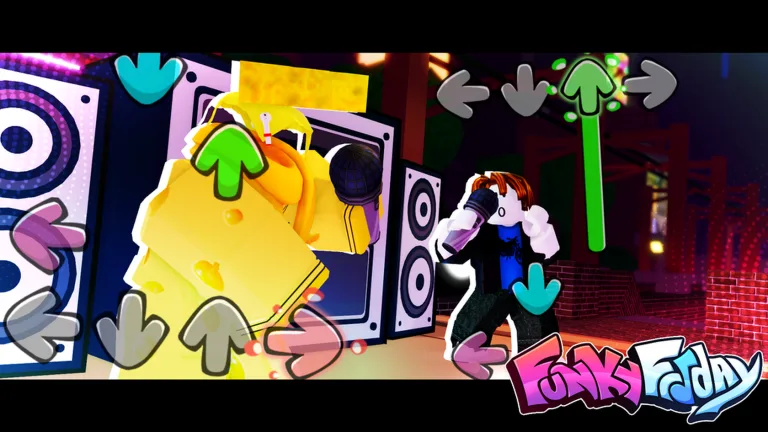 Image: Roblox / Lyte Interactive
- Enable Hide Spectators to hide nearby spectators and their chat bubbles.
- Disable Toggle Camera Movement if the camera pulls your attention away from the notes.
- Try Middle Scroll to move your arrows toward the center of the screen.
- Enable Info Bar to track accuracy, misses, and combo while playing.
- Adjust Scroll Underlay Transparency to give arrows a clearer background.
If performance is rough, try Hide Lobby, Hide Map, and Disable Opponent Arrows. You can also turn off materials, shadows, and props.
Down Scroll makes arrows travel from top to bottom. Opponent's Arrows (Middle Scroll) controls whether you see the opponent's arrows with Middle Scroll enabled. Turn on Hide Seated Players if the person sitting on the speakers distracts you, and disable Missed Note Sound if its audio breaks your concentration.
Practice Without Turning Every Song Into a Spam Test
Choose songs everyone can reasonably follow before moving into harder charts. Work on hitting patterns deliberately; frantic tapping makes it harder to build consistent timing.
Use accuracy and misses to track your own progress between attempts. Practice a variety of songs so you learn different patterns, then try something slightly beyond your comfort zone.
For solo practice between team sessions, enable Toggle Bot Play to play against a bot. Bot Accuracy sets its average accuracy. Multi-key Game Mode enables charts with more than four keys, while Note Mechanics enables death and poison notes. Turn on Note Mechanics when practicing how to ignore those notes.
Keep distracting animations out of your field of view, and take breaks before your hands become uncomfortable. Stop playing if they hurt. A team session is easier to enjoy when everyone can keep up with the chart and stay comfortable through it.
Continue with
 Funky Friday Free Play: Solo Practice and SettingsUse Funky Friday free play to practice solo, adjust keybinds, and clear distractions. Learn which settings help you read notes and build consistent timing.
More in Guide
See all Guide
Continue exploring
Join the community
Official channels for news, updates and player help: