Funky Friday Settings: Keybinds, Accuracy, and FPS
Tune Funky Friday settings for clearer notes, comfortable keybinds, and smoother play. Adjust scroll speed and reduce distractions and lag on PC or mobile.
Jump to
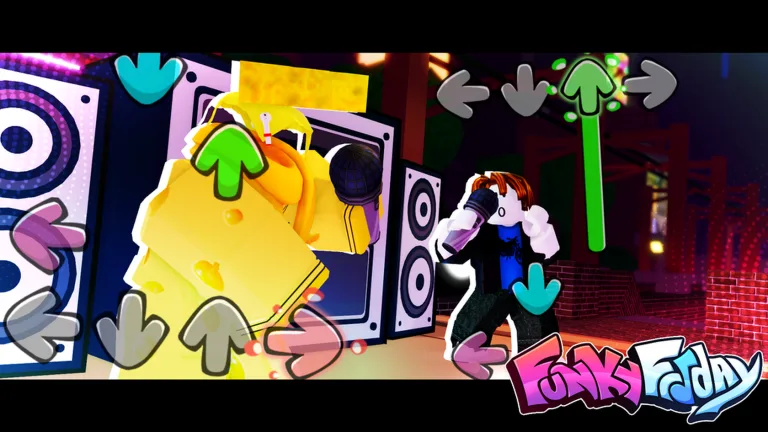
Clear the screen before tackling a harder chart. Funky Friday settings let you adjust note visibility, keyboard layout, and visual effects so you can focus on hitting patterns. Start with comfortable controls and a readable playfield, then tune speed and performance around your device.
Start With a Clear, Low-Distraction Setup
Open Settings to find keybinds and arrow skins. Begin with the following setup, then adjust the options that affect how you read notes.
| Setting | Recommended starting value | Why it helps |
|---|---|---|
| Toggle Camera Movement | Off | Keeps the camera from shifting between players during notes. |
| Toggle Camera Directional Movement | Off | Removes camera motion tied to animation direction. |
| Hide Spectators | On | Hides nearby spectators and their chat bubbles during battles. |
| Hide Seated Players | On | Removes the player sitting on the speakers from view. |
| Info Bar | On | Displays accuracy, misses, and combo while you play. |
| Judgement Statistics | On | Provides a breakdown of your note judgments. |
| Toggle Note Effect | Off | Removes animated effects triggered by Sick hits. |
| Scroll Underlay Transparency | 0 | Creates an opaque background behind the notes. |
| Toggle Ghost Tapping | On | Allows presses during empty sections without adding misses. |
| Missed Note Sound | Off | Removes an extra sound that can distract from the song. |
| Pressed Arrow Glow | Off | Reduces visual effects when you press a key. |
Middle Scroll centers your arrows. Try it if following a playfield on the left or right feels awkward. Use Opponent’s Arrows (Middle Scroll) to choose whether the opponent’s notes remain visible.
Ghost tapping does have limits: it does not prevent misses from skipped notes or incorrect inputs during note patterns. Keep watching your accuracy and miss count.
Official page: Funky Friday (roblox.com)
Set Comfortable Keybinds and Save a Preset
For four-key charts, try a layout that places two fingers from each hand along a keyboard row. DFJK, SDKL, and ZX,. are options to experiment with; read each layout in left, down, up, right order.
 Image: Roblox / Lyte Interactive
For example, DFJK maps:
- D: Left
- F: Down
- J: Up
- K: Right
Choose a layout you can hold comfortably without stretching. Avoid switching between several layouts every session while you are still learning the patterns.
Change individual bindings
Inside the arrow customization controls:
- Select Customize.
- Choose the key mode you want to edit.
- Select an arrow, then open its Keybinds subtab.
- Add the key you want to use.
- Use Delete beside an active binding to remove an unwanted assignment.
- Select Save to keep your changes, or Reset to restore defaults.
Each key mode has its own configuration. Changing four-key controls does not replace the need to configure the other modes you play.
The default layouts give you a starting point:
| Key mode | Default bindings in lane order |
|---|---|
| 4 Keys | A / Left Arrow, S / Down Arrow, W / Up Arrow, D / Right Arrow |
| 5 Keys | D, F, Space, J, K |
| 6 Keys | S, D, F, J, K, L |
| 7 Keys | S, D, F, Space, J, K, L |
| 8 Keys | A, S, D, F, J, K, L, Semicolon |
| 9 Keys | A, S, D, F, Space, J, K, L, Semicolon |
Save an arrow profile
Open Presets, select the key mode, enter a preset name, and press the green Save button. Use Equip beside a saved preset to apply it.
Save your comfortable configuration before experimenting with different arrow colors, styles, or sizes.
Adjust Scroll Speed, Arrow Size, and Timing
Try Arrow Speed 2.0 and Arrow Size 1.2 as a starting combination. Increase speed if notes feel too crowded to separate; decrease it if they pass faster than you can read them. Adjust size around your screen and playfield.
 Image: Roblox / Lyte Interactive
Change one setting at a time and replay a familiar song. That makes it easier to judge whether the adjustment actually helps you read the chart.
Keep these controls separate:
- Arrow speed and size affect note presentation.
- Lane offset and height offset adjust the playfield layout.
- Arrow Offset delays arrow generation.
- Hitbox Offset adjusts hitbox timing.
Leave lane and height offsets at 0 while establishing your basic setup. Keep Arrow Offset and Hitbox Offset at 0 unless you have a consistent timing problem. Avoid copying another player’s timing offset just because their accuracy looks impressive.
Down Scroll makes notes travel from top to bottom. Keep the direction you already read comfortably; switching direction adds another adjustment while you are learning.
For contrast, use an opaque underlay at 0, or try a value up to 0.6 if you want more of the background visible. At 1, the underlay is transparent.
Reduce Lag on Lower-End Hardware
If the game stutters, start with the optimization controls:
 Image: Roblox / Lyte Interactive
- Turn Hide Lobby and Hide Map on.
- Turn Disable Opponent Arrows on to stop generating the opponent’s arrows.
- Turn Toggle Materials, Toggle Shadows, and Toggle Props off.
- Turn Spectate Mode off if performance remains poor.
- Lower Roblox graphics quality to 1 when your device struggles.
Hiding the opponent’s arrows is especially useful to try during charts with heavy note spam. Pair it with hidden spectators and disabled camera movement to reduce distractions while troubleshooting performance.
On a capable PC, higher graphics quality is an option, but prioritize smooth play over scenery. Avoid copying another player’s frame-rate setting without considering how your own device performs.
Set Up Mobile and Console Controls
On mobile, enable Mobile Tile Buttons. Combine them with hidden lobby and map elements if the device struggles during songs.
Adjust arrow size and scroll speed for the screen you are actually using. Larger notes can improve visibility, but test the result on a familiar chart before changing anything else.
On console, the supported controls are the D-PAD or XYBA. Practice with the control scheme you find comfortable before moving into harder patterns.
Choose Game Modes Around Your Practice Goal
Keep Deathmatch Game Mode off while learning. Both players must enable it for it to activate, and losing causes your character to die in-game. Toggle it outside a match.
Use the other mode options deliberately:
- Note Mechanics: Enables death and poison notes. Turn it on when you want to practice recognizing those notes and avoiding them.
- Modcharts: Enables special chart behavior on supported songs. Leave it off until you can comfortably follow the underlying notes.
- Multi-key Game Mode: Enables charts with more than four keys. Configure the relevant bindings before practicing those charts.
- Multi-player Stages: Enables formats such as 2v2 and 4v1 when both players have the option enabled. It can be enabled after joining a stage, and these matches do not affect win streaks.
For solo practice, Toggle Bot Play lets you face a bot, while Bot Accuracy controls its average accuracy. Pick songs slightly outside your comfort zone, vary the patterns you practice, and take a break before your hands start hurting.
Continue with
 Funky Friday Keybinds: Change Controls and Save PresetsCustomize Funky Friday keybinds, check default controls for every key mode, and save arrow presets. Fine-tune your layout for comfortable rhythm battles.
More in Settings
See all Settings
Join the community
Official channels for news, updates and player help: